Why your Shopify store is slow, and where to look first
A slow store is usually a pile of small problems. Here is the order to look in: apps, images, fonts, scripts, then theme code.
A slow Shopify store rarely has one big problem. It is usually a pile of small ones: an app that added a script nobody uses any more, a hero image served at twice the size it is shown, a font that blocks the first paint. The good news is that the order in which you look matters more than how hard you look.
Start with what visitors actually see
Open PageSpeed Insights for your home page, a collection page and a product page, and read the field data first (the “real users” block), not just the lab score. Lab scores swing from run to run. Field data tells you whether people on real phones and real connections have a problem.
1. Audit your apps
Every installed app can add JavaScript and CSS to every page, whether or not that page uses the app. Go through the list and ask for each one: is it still used, and does it need to load on every template? Uninstalling an app does not always remove what it left in the theme, so check theme.liquid and the snippets folder for leftover includes.
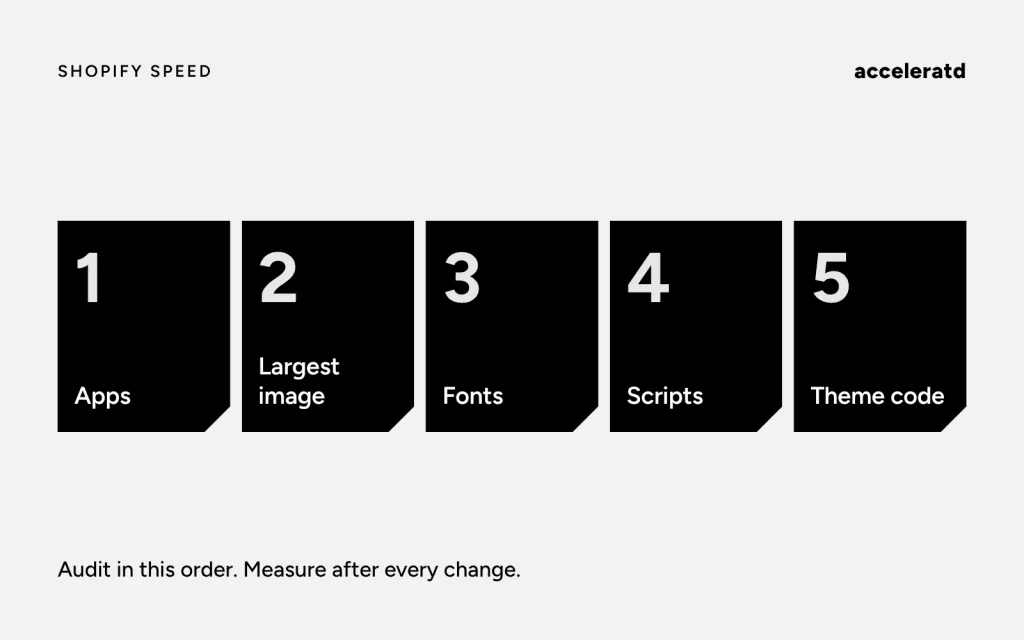
2. Fix the largest image first
On most pages the largest element on screen is an image, and it decides your Largest Contentful Paint. Three rules cover most cases:
- Request the size you display, using Liquid’s
image_urlfilter with a width, and give the browser asrcsetandsizes. - Do not lazy-load the image at the top of the page. Load it eagerly and add
fetchpriority="high". - Lazy-load everything below the fold.
3. Tame fonts
Use as few font files as you can, serve WOFF2, and set font-display: swap so text shows immediately. Preload only the one or two files used above the fold.
4. Defer what is not needed to start
Chat widgets, review carousels, pop-ups and tracking scripts do not need to run before the page is usable. Load them after the first interaction or after the page has settled. If everything runs through a tag manager, audit the tags there too, as old ones tend to stay behind.
5. Only then touch the theme code
Large Liquid loops, unused sections and heavy JavaScript in the theme matter, but they are the last place to look, not the first. Measure again after each change so you know which one helped.
The short version
Look at real-user data, remove what you do not use, shrink the biggest image, keep fonts light and delay the extras. If you want a longer checklist, see our Core Web Vitals checklist. For the WordPress side of the same problem, read custom Elementor widgets or more plugins.